
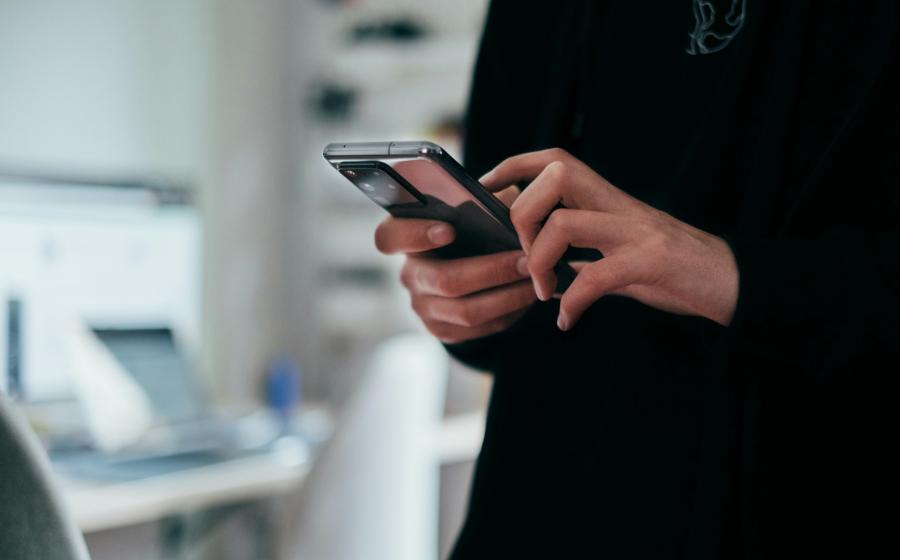

Your smartphone can be your best productivity tool or your biggest time sink, often in the same day. Whether you're on an iPhone or eyeing the new Galaxy S26 Ultra, the phone itself isn't really the problem; it's how easily we let it run our attention, rather than the other way around. This guide walks through simple, practical changes that cut down on distractions, build better daily habits, and help you actually notice the difference in what you get done.
Here's what we'll cover: quieting notifications, tidying up your home screen, letting a few smart automations handle the repetitive stuff, being sensible about privacy, and a simple way to check whether any of it is actually working.

Quiet the Notifications First
Notifications are the single biggest source of interruption in most people's day, and it's not just a feeling. A study published in Scientific Reports found that simply having a smartphone within reach measurably reduces your ability to concentrate, whether or not it ever buzzes. Cutting down on how often your phone lights up is the fastest way to claw some of that attention back.
Both iPhone and Android have built-in tools for this, and you don't need to be technical to use them:
• iPhone: Apple's Focus feature lets you decide who and what can reach you during work hours and quietly silences everything else. If you want a step-by-step walkthrough, Apple's own setup guide covers the basics well.
• Android and Samsung: Digital Wellbeing (or One UI's Routines on Samsung phones) does something similar. It can pause distracting apps, cap your time on them, and automatically switch your phone into "focus" mode when a work calendar event starts.
You don't need to set all of this up at once. Start by muting non-essential notifications and building one focus schedule for your working hours. Everything else can wait.
Tidy Up Your Home Screen
A cluttered home screen makes your phone slower to use for the things that matter and easier to get pulled into the things that don't.
• Move your everyday tools, calendar, notes, task list, and voice recorder onto the first page.
• Move social and entertainment apps off the home screen entirely, or tuck them into a folder you have to go looking for.
• Swap a tempting news or social feed widget for something more useful, like today's top tasks or a simple timer.
• Where you can, log out of apps you're trying to use less. That small extra step of logging back in is often enough to break the habit of opening them out of boredom.
Let Automation Handle the Repetitive Stuff
Automations turn small daily decisions into things that just happen on their own. A few worth setting up:
• A "work" mode that quiets everything except essential contacts and apps during business hours.
• A "commute" mode that starts a podcast or audiobook and turns on Do Not Disturb the moment you connect to your car's Bluetooth.
• A "wind down" mode in the evening that silences non urgent notifications and simplifies your lock screen.
On iPhone, these can be built with Shortcuts and Focus schedules. On Android, Samsung's Routines (or the more advanced Tasker app, if you want to go further) do the same job. None of these require coding knowledge, just a few minutes of setup the first time.
A Quick Word on Privacy
Convenience and privacy often pull in opposite directions, so it's worth a moment's thought before you connect everything together:
• Only give apps the permissions they genuinely need, and be cautious with always on microphone or camera access.
• Automations that run entirely on your phone (like Shortcuts) are generally safer than ones that route your data through a third-party cloud service, so check what an automation actually shares before turning it on.
• Turn on two factor authentication for your important accounts, and use encrypted backups where possible.
A simple rule of thumb: if an automation shares your data from one app to another, it's worth asking what actually leaves your device.
How to Tell If Any of This Is Actually Working
It's easy to make a bunch of changes and never check whether they helped. A simple before and after comparison fixes that:
1. Week one: Don't change anything yet. Just note your screen time, how often you unlock your phone, and roughly how many tasks you get through each day.
2. Week two: Make the changes above, then track the same things.
3. Compare: Look at the difference in screen time, unlocks, and tasks completed, and how much more focused you actually felt.
A Simple One-Week Plan
If you'd rather ease into this than do it all at once, here's a day-by-day approach:
• Day 1: Note your current screen time and unlocks, then remove or hide your three most distracting apps.
• Day 2: Turn off non essential notifications and set up one Focus schedule for work hours.
• Day 3: Reorganise your home screen so your everyday tools are front and centre.
• Day 4: Set daily time limits on your one or two biggest time sink apps.
• Day 5: Set up one automation, like a commute or work focus mode.
• Day 6: Live with it. Adjust anything that feels too strict or too loose.
• Day 7: Compare your numbers to where you started, and decide what's worth keeping.
Common Questions
How do I turn on Focus mode on iPhone?
Open Settings, tap Focus, then the plus icon to create one. Choose who and what can reach you, then schedule it for the times you want it active.
How do I set app limits on Android?
Open Settings, then Digital Wellbeing, then Dashboard. Tap an app and set a daily timer.
Are phone automations safe to use?
Generally, yes, especially ones that run entirely on your device. Just check the permissions on any automation that connects to a cloud service before turning it on.
How do I know if it's actually working?
Track your screen time, unlocks, and tasks completed for a week before you change anything, then again after. The difference tells you more than how you feel in the moment.

Being more productive with your phone isn't about willpower, it's about setting things up so the right choice is the easy one. Quiet the notifications, clean up your home screen, let a couple of automations take the repetitive decisions off your plate, and check in after a week to see what's actually changed.
Small, deliberate changes add up faster than most people expect.